

Traditionally, if you were choosing a paint color, you would bring home a handful of swatches, hold them against the wall, and try to imagine how a two-inch square of color might look across an entire room or the exterior of your house.
More recently, we have also seen people use larger peel-and-stick samples. These are more helpful, but they still only show the color on a small section of the surface. They cannot show you how a color will look across the whole room, how it works alongside your flooring, furniture, cabinets, and trim, or how several colors might work together across the brick, roof, and landscaping of a house exterior.
Some paint manufacturers also have their own digital visualizers, but most require you to manually mask surfaces, are slow, and are difficult for the average person to use. You are also often limited to a single manufacturer’s paint colors, and because each brand developed its own visualizer, the experience and capabilities vary considerably from one tool to another.
AI paint visualizers solve many of these problems by identifying individual surfaces, preserving more of the existing lighting, shadows, textures, furniture, and architectural details, and creating a more realistic preview of how a new color could work in your actual space. Some also bring paint colors from several manufacturers into one place, making it easier to compare options without switching between different brand-specific tools.
In this guide, we’ll look at the best AI paint visualizers, including our own, and share how we solve the problems we found with traditional visualizers. We’ll also look at other paint visualizers that frequently come up when people compare these tools, what each one does well, and where each is more limited.
1. Paint Visualizer AI
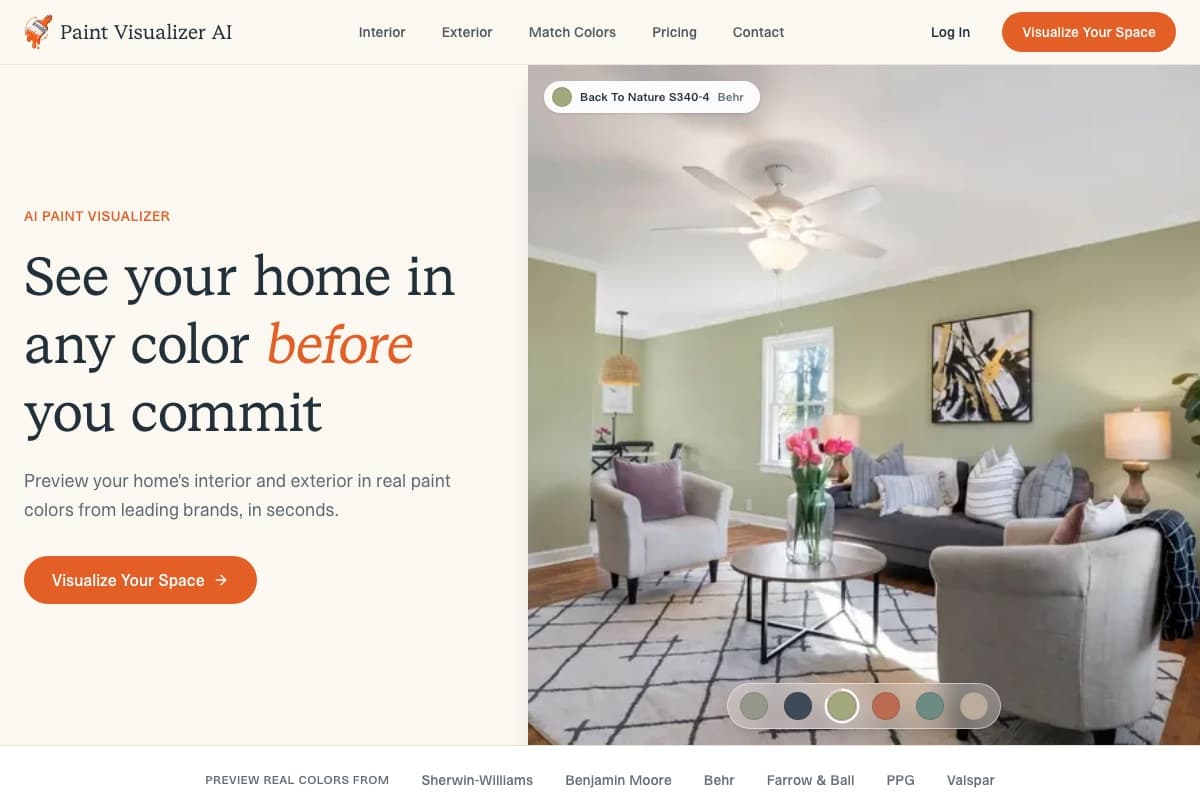
We built Paint Visualizer AI to address many of the limitations we found in traditional paint visualization tools.
Instead of manually masking every wall, section of trim, cabinet, or exterior surface, you can upload a photo of your room or house, choose the areas you want to repaint, and assign colors to them individually.
The AI then generates a new version of the image while preserving the existing lighting, shadows, textures, furniture, flooring, windows, landscaping, and architectural details.
With Paint Visualizer AI, your result feels less like a flat color placed over a photograph and more like a realistic preview of how the space could look after repainting.
Use real paint colors from multiple brands
One of the biggest limitations with manufacturer-owned visualizers is that you are usually restricted to that company’s own paint catalog.
You can search and preview real paint colors from several major manufacturers, including Sherwin-Williams, Benjamin Moore, Behr, Farrow & Ball, PPG, and Valspar by color name or code, or use a custom color if you already have something specific in mind.
This is especially useful if you haven’t decided which paint brand you want to buy yet. Instead of uploading the same photo to several different visualizers and recreating the same surfaces each time, you can compare colors from different manufacturers in one place.
Test different colors across multiple surfaces
Most paint projects involve more than choosing a single color.
Indoors, you may want one color for the walls, another for an accent wall, and separate colors for the ceiling, trim, cabinets, or doors. On the exterior, you may want to coordinate the main body of the house with the trim, shutters, doors, and other painted surfaces.
Paint Visualizer AI lets you select these areas separately and assign a different paint color to each one before generating the preview. If the part of your room or exterior you want to paint is not already listed, you can add a custom surface.
This lets you work through an entire color palette in the same photo. For example, you could test warm white walls with darker trim and painted cabinets in a kitchen, or preview one color on exterior siding with separate colors for the trim, shutters, and front door.
Instead of judging each color in isolation, you can see how the full combination works together in the space.
Visualize interior and exterior paint
Paint Visualizer AI works with both interior and exterior photos.
For interiors, you can test colors on walls, accent walls, ceilings, trim, cabinets, doors, and other paintable surfaces. For exteriors, you can experiment with siding, stucco, trim, shutters, doors, fences, garage doors, and other areas of the property.
This is especially useful for exterior projects, where several materials and colors are often visible at once. You may want to leave existing brick or stone untouched while changing the siding, trim, shutters, and front door around it.
Compare similar paint colors across brands
If you find a color you like from one manufacturer, Paint Visualizer AI can also help you compare it with similar colors from other brands.
That can be useful when you like the appearance of a particular Sherwin-Williams or Benjamin Moore shade but want to see whether Behr, PPG, Valspar, or another manufacturer has a close alternative.
It is also helpful for colors that can be difficult to judge from small samples alone, such as warm whites, off-whites, greiges, soft grays, and muted greens.
Several shades may look nearly identical on a paint chip but feel noticeably different once they cover a larger surface in your actual room.
Keep the rest of your space intact
Plenty of general AI interior design and remodeling tools can change a room’s color, but many also regenerate the furniture, flooring, decor, windows, landscaping, or even parts of the architecture.
That can be useful when you are looking for broad design inspiration, but it is less helpful when the only thing you are trying to decide is what color to paint your existing space.
Paint Visualizer AI focuses specifically on paint visualization, so it changes the surfaces you select while keeping the rest of the image as close to the original as possible. That makes it easier to judge the new color against the furniture, flooring, roof, brick, landscaping, or other materials that will actually remain after you paint.
Works in your browser and easy to share
Paint Visualizer AI runs in the browser, so there is no app to install, and it works the same on desktop, tablet, or phone.
Once a preview is generated, you can download the image to review with your family, designer, painter, or HOA before the work begins.
Having a rendering of the actual house or room makes those conversations much easier than pointing at a paint chip and asking someone to imagine the rest.
Narrow down your choices without collecting dozens of samples
One of the biggest advantages of an AI paint visualizer is that you no longer need to bring home a stack of swatches or peel-and-stick samples just to see which colors might work.
With Paint Visualizer AI, you can preview different paint colors directly in your own room or on your exterior, see how they work with the existing lighting, furniture, flooring, trim, brick, landscaping, and other surrounding materials, and compare several options before buying anything.
Because the visualization is generated from your actual space, you can rule out colors that do not work almost immediately and spend more time comparing the few that do. You can also test combinations across multiple surfaces, such as walls and cabinets indoors or siding, trim, shutters, and doors outside, without needing a separate physical sample for every color you want to consider.
For many people, that can replace the traditional swatch and sample-selection process altogether. If you want one final check before painting a large area, you can still test your chosen color on the actual surface, but by that point you may only be deciding between one or two finalists rather than starting with a pile of samples.
2. Sherwin-Williams Color Expert
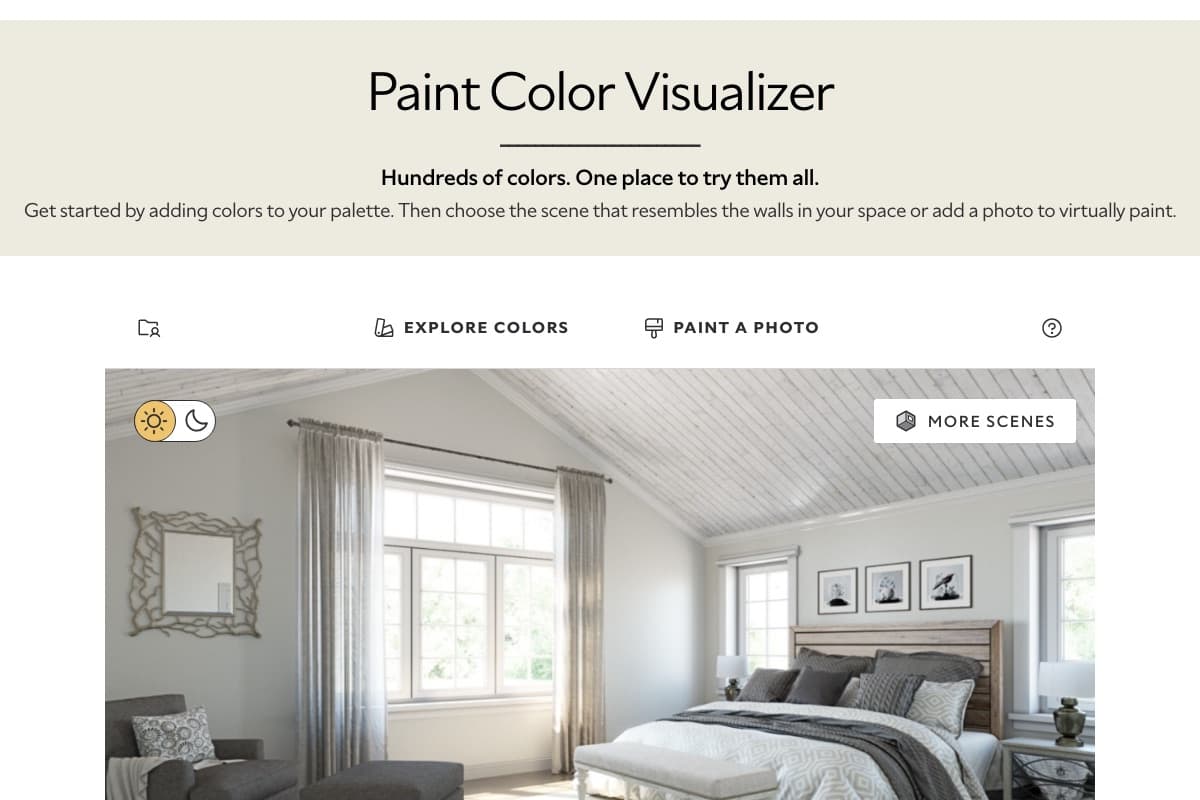
Sherwin-Williams has offered digital color visualization tools for years, including its well-known ColorSnap Visualizer, but its newer Color Expert app moves closer to the experience we are seeing from AI paint tools.
You can upload a photo of an interior or exterior and preview Sherwin-Williams colors directly on the space. For exterior projects, the app lets you apply different colors to individual surfaces such as siding, trim, shutters, and doors. It also uses AI to analyze an interior and recommend colors that complement the furniture, finishes, and other objects already in the room.
Sherwin-Williams also maintains its web-based Color Visualizer, where you can upload a photo or start with one of its sample rooms, build a color palette, and virtually apply colors from the Sherwin-Williams catalog.
The advantage of both tools is that you are working directly with actual Sherwin-Williams colors, and once you find one you like, you can save it and order chips or peel-and-stick samples through the same ecosystem. The limitation is that the experience is naturally built around Sherwin-Williams products, so it is less useful if you are still comparing similar colors across several paint manufacturers.
3. Benjamin Moore Personal Color Viewer
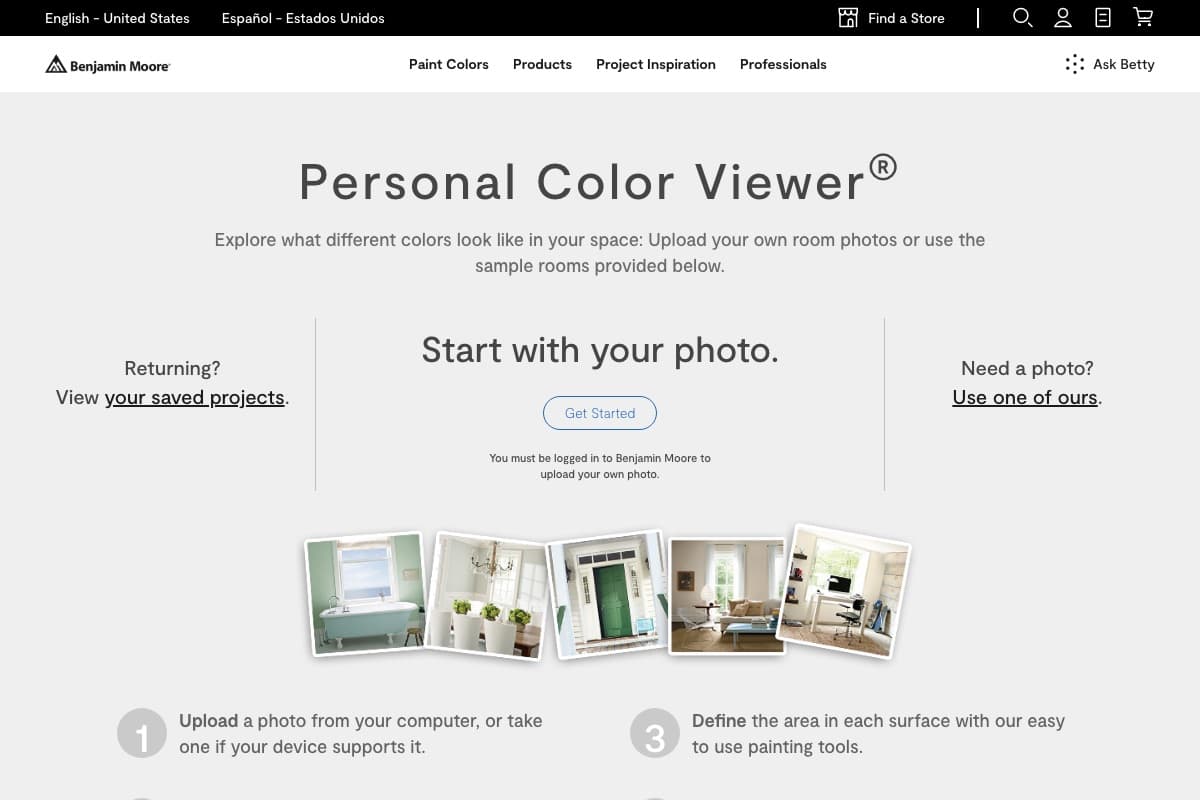
Benjamin Moore’s Personal Color Viewer lets you upload a photo of your own room and apply colors from its catalog of more than 3,500 paint colors.
The workflow is more manual than newer AI visualizers. After uploading your photo, you can create up to five separate surfaces and use the painting tools to define the areas you want to recolor. You can then assign different Benjamin Moore shades to those surfaces and save the project. The tool currently works on desktop computers and larger tablets rather than mobile phones, and you need a Benjamin Moore account to upload your own photo.
Benjamin Moore also has its Color Portfolio mobile app, which can apply colors to photos and video, browse the company’s fan decks, and match a color captured with your phone to a Benjamin Moore paint color.
For someone who already plans to buy Benjamin Moore paint, these tools provide a convenient way to explore the brand’s catalog. If you are still choosing between Benjamin Moore, Sherwin-Williams, Behr, or another manufacturer, however, you will need to move between separate visualizers to compare them.
4. Behr Color Visualizer
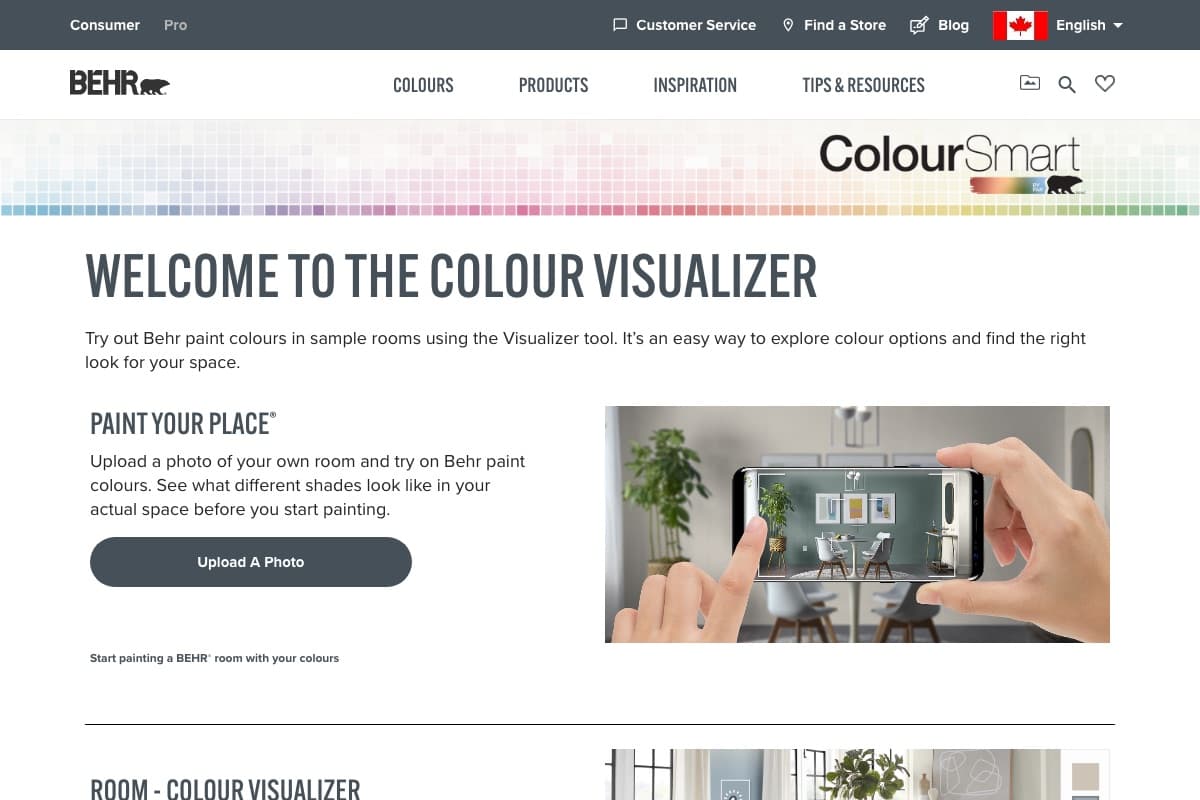
Behr’s Color Visualizer gives you the choice of experimenting with its pre-built sample rooms or uploading a photo of your own room through its Paint Your Place feature. You can then try Behr colors on the space and move from the visualization into selecting the paint product, finish, and other details if you decide to purchase it.
The sample-room option can be useful when you are still browsing for general inspiration. Behr includes rooms such as kitchens, bedrooms, bathrooms, living rooms, dining rooms, offices, and entryways, so you can quickly see how different color families look across common spaces without needing to take a photo first.
Behr colors are also available through The Home Depot’s Project Color app if you prefer working from your phone, which can additionally match colors from photos to shades sold in the store.
As with most manufacturer visualizers, the main benefit is the direct connection to the paint you can actually buy. If you already know you want Behr, it provides a straightforward path from finding a color to visualizing and purchasing it. The tradeoff is that you are comparing Behr colors only.
5. Valspar Paint Color Visualizer
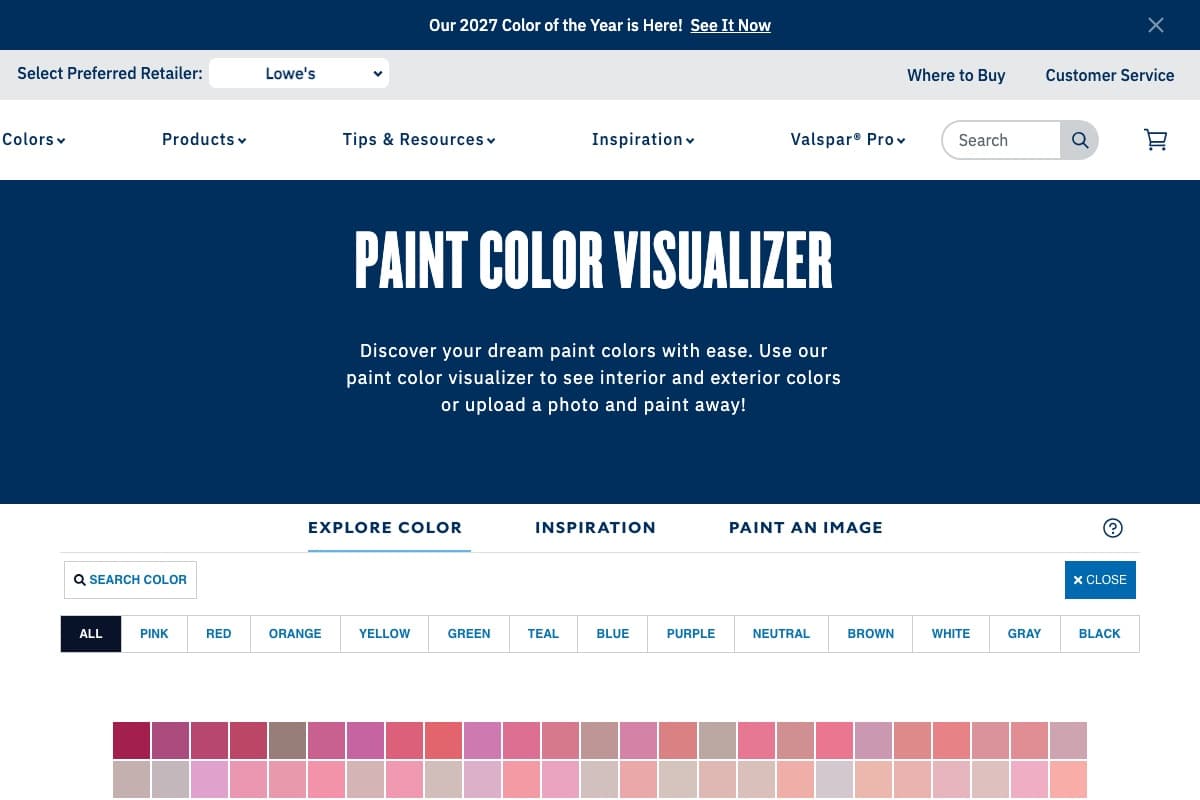
Valspar also offers its own paint color visualizer for exploring colors on both interior and exterior spaces.
You can work with one of Valspar’s existing images or upload a photo of your own home and apply colors from the company’s catalog. Valspar currently offers more than 1,500 colors, so the visualizer can be useful when you already know you will be purchasing Valspar paint but need help narrowing down the shade.
Valspar’s wider color-selection tools are particularly geared toward helping people move from digital exploration to physical samples. You can order up to ten free paint chips, and the company also offers a free virtual color consultation where you can submit photos and details about your room, lighting, and style and receive recommendations from a color expert.
The visualizer itself is more closely tied to the traditional manufacturer approach than to newer generative AI paint tools. It is a useful option for working through Valspar colors, but someone comparing paints across different brands will still need to use separate tools.
6. PPG Paint Color Visualizer
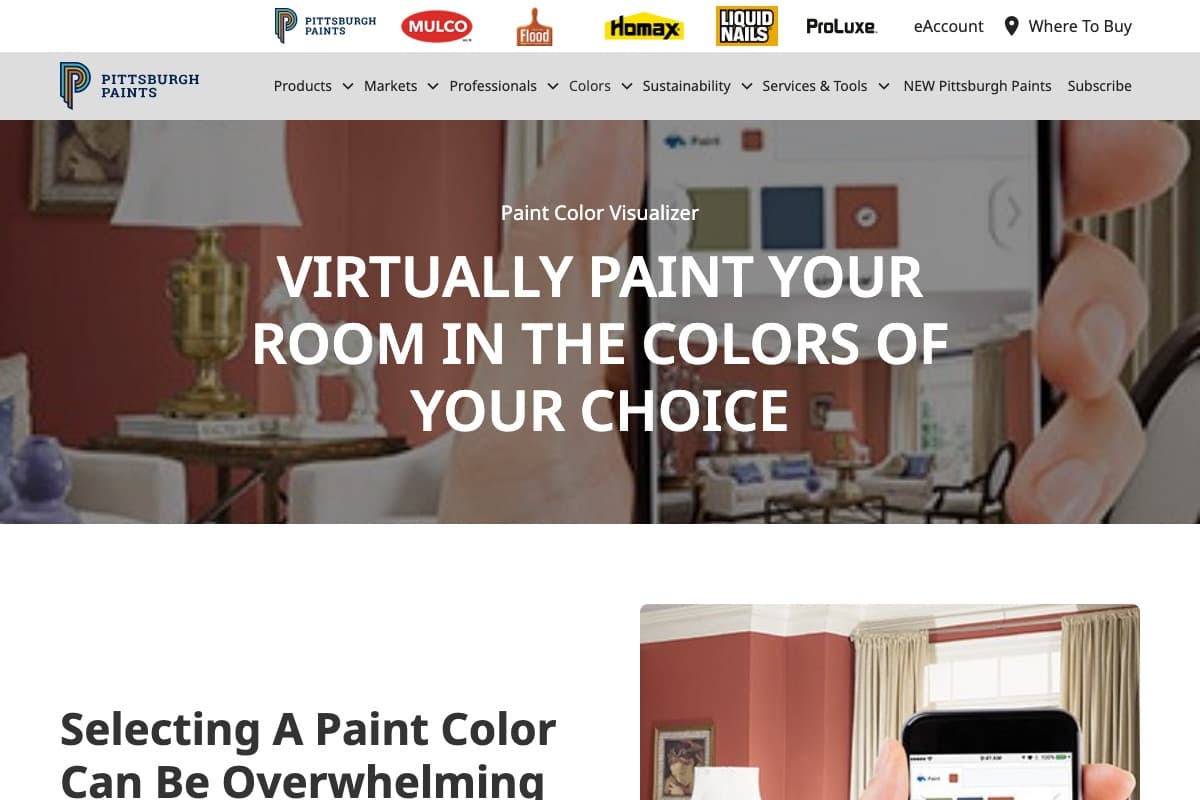
PPG’s visualizer is interesting because it addresses one of the more frustrating parts of older digital paint tools, which is manually drawing around every wall you want to recolor.
When you upload a personal photo, its edge-detection technology automatically looks for the boundaries of the wall so you can select and recolor it without first tracing the entire surface by hand. There is still an editing tool available when you need to make more precise adjustments.
PPG also says the visualizer takes characteristics such as the existing lighting conditions into account when creating the color preview. You can use the tool directly in a browser on either a computer or mobile device rather than installing a separate app.
It is one of the better examples of a traditional manufacturer visualizer incorporating more automation into the process. However, like the other brand-owned options on this list, the color-selection side of the experience is centered on PPG paints.
7. Dulux Visualizer
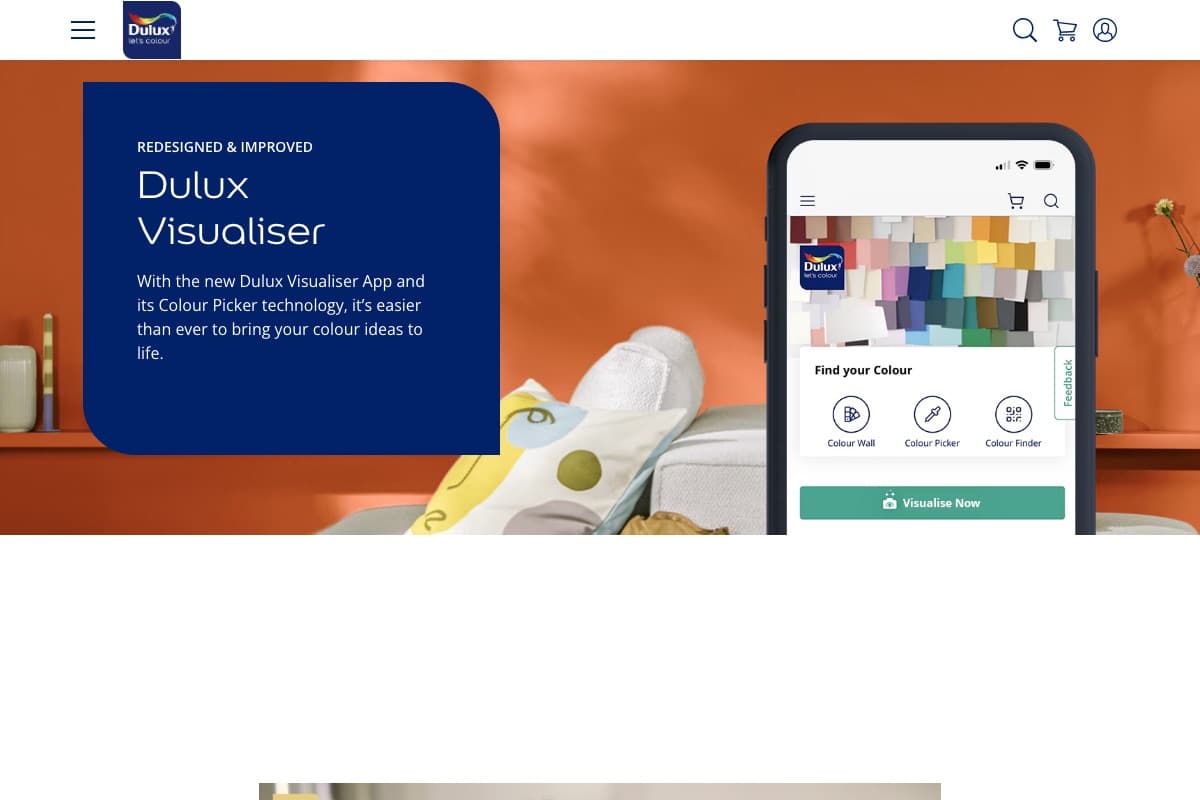
Dulux approaches paint visualization somewhat differently from the photo-based tools above. Its mobile Visualizer app uses augmented reality so you can point your phone at a wall and see different Dulux colors appear on the surface in real time.
That makes it particularly useful when you are standing in a room and want to move quickly through several different colors without generating and saving a new image for every option.
The app also includes a Color Picker. If you like the color of a cushion, sofa, artwork, or another object in the room, you can capture it with your phone and Dulux will suggest a close match from its paint catalog. It can also suggest coordinating colors, save different schemes as projects, and let you share them with someone else before making a decision.
The biggest difference here is AR versus AI-generated photo visualization. Dulux is useful for quickly seeing a color on the wall while you are physically in the room, whereas an AI paint visualizer is better suited to generating a more complete preview that you can inspect and compare afterward.
One practical note is that Dulux paint is primarily sold in the UK, Europe, Australia, and other international markets, so the app is most useful if Dulux is actually available where you live. As with the other manufacturer tools, you are also working specifically within the Dulux color range.
8. RoomGPT
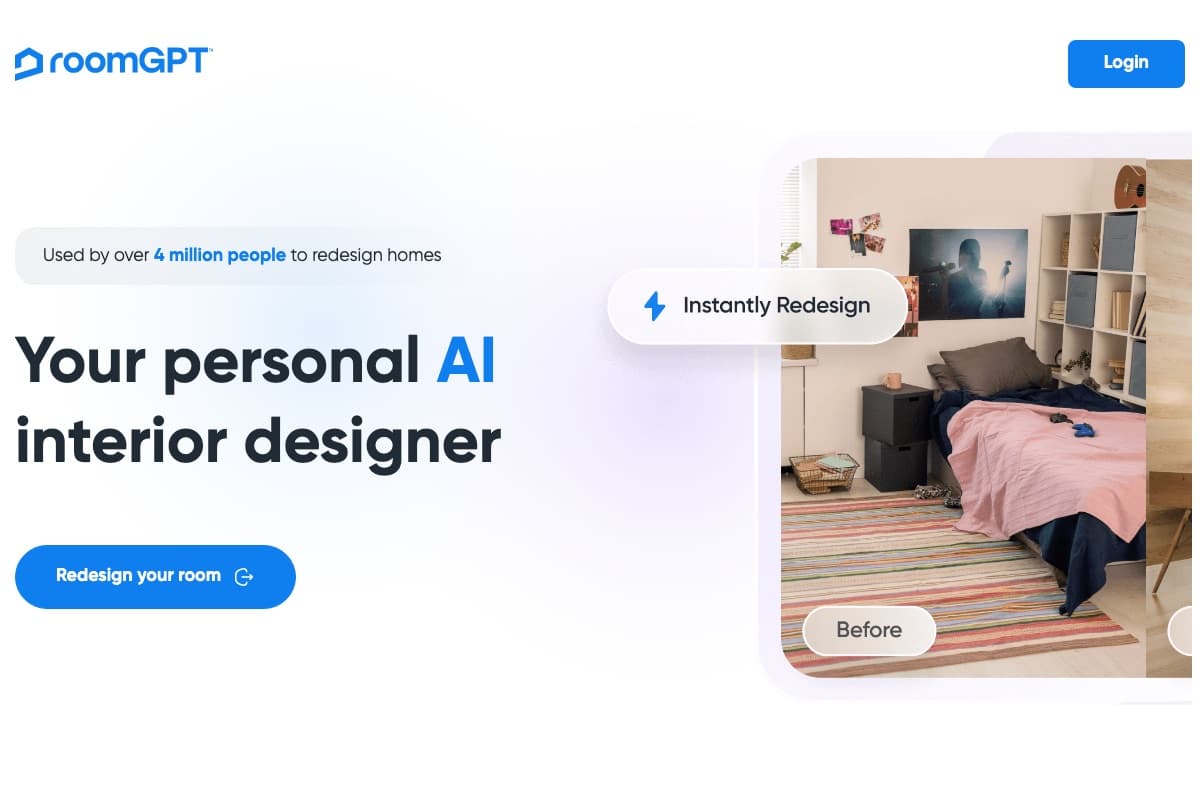
RoomGPT sits in a different category from everything else on this list. It is a general AI room redesign tool rather than a paint visualizer, and that distinction matters depending on what you are trying to decide.
You upload a photo of your room, choose from themes such as modern, minimalist, or vintage, and RoomGPT generates a redesigned version of the space. The results can be genuinely useful when you want broad inspiration and are open to rethinking the furniture, decor, and overall style of a room, not just the wall color.
The limitation for paint decisions specifically is that RoomGPT regenerates much of the image. The furniture, flooring, decor, and sometimes architectural details in the output are not the ones you actually own, and the wall colors it produces are AI-generated shades rather than colors matched to a paint you can buy. That makes it hard to judge how a specific Sherwin-Williams or Benjamin Moore color will look next to your actual sofa and floors.
If you are early in a project and still deciding what you want a room to feel like, RoomGPT is a fun way to explore directions. Once you are down to choosing an actual paint color for your existing space, a dedicated paint visualizer will give you a more reliable answer.
What to Consider When Choosing an AI Paint Visualizer
Not all paint visualizers work the same way. Some are built specifically for comparing paint colors, while others are broader home-design tools where changing the wall color is only one part of the experience.
The right option depends on whether you are trying to choose an exact paint color, compare several brands, work on an exterior, or simply get inspiration for a larger redesign.
Real paint colors vs. AI-generated shades
This is one of the biggest differences between a dedicated paint visualizer and a general AI design tool.
Some AI tools let you enter a description such as “warm white,” “sage green,” or “dark navy” and generate a room around that idea. That can be useful for inspiration, but it does not necessarily correspond to a paint color you can walk into a store and buy.
If you are actually trying to choose paint, look for a visualizer that lets you select real colors by manufacturer, name, or color code. This makes it much easier to move from the visualization to purchasing the paint once you have made your decision.
Multi-brand color comparison
Manufacturer visualizers are useful when you already know which brand you want to buy, but they naturally keep you within their own color catalog.
If you are still comparing options, a multi-brand visualizer can save a lot of back-and-forth. Instead of uploading the same photo to Sherwin-Williams, Benjamin Moore, Behr, and other tools separately, you can compare their colors in the same space and through the same visualization process.
This is particularly useful when you find a color you like but want to see whether another manufacturer offers something similar.
Preservation of your existing space
A good paint visualization should change the paint without unnecessarily changing everything around it.
General AI home-design tools can sometimes replace furniture, alter flooring, change windows, modify landscaping, or reinterpret architectural details while generating the new image. That is useful when you are looking for remodeling ideas, but it makes paint colors harder to judge because you are no longer looking at the same room or exterior.
For paint selection, look for a tool that preserves as much of the original photo as possible so you can see the new color against the materials and surroundings that will actually remain.
Separate surface selection
Most projects involve more than one surface.
Inside a house, you may need separate colors for walls, ceilings, cabinets, trim, doors, or an accent wall. Outside, you may be working with siding, stucco, shutters, trim, garage doors, and the front door.
A visualizer that lets you select and recolor these areas independently makes it much easier to create a complete palette. Otherwise, you may only be able to see one color change at a time and still have to imagine how the final combination will work together.
Interior and exterior support
Interior and exterior visualization present different challenges.
Interior tools need to work around furniture, cabinetry, windows, flooring, artwork, and other objects. Exterior photos can include siding, brick, stone, trim, roofs, shutters, trees, shadows, and landscaping.
If you are planning an exterior project, check that the visualizer was actually designed to recognize and recolor exterior surfaces rather than simply applying an interior-focused workflow to a photograph of a house.
Manual masking requirements
Older visualizers often require you to draw around the surface you want to paint before you can apply a color.
That can be manageable for one empty wall, but it quickly becomes tedious around windows, molding, cabinets, staircases, brickwork, shutters, trees, or other detailed edges.
Newer AI visualizers can identify many of these surfaces automatically, which makes experimenting with several colors much faster. Some tools also let you refine the selected area or add a custom surface when the automatic detection does not identify exactly what you want.
It is also worth checking where the tool actually runs. Some visualizers are mobile apps only, while others work in the browser on any device, which matters if you plan to compare colors on a larger desktop screen or your phone is older.
Realism of the final preview
There is a big difference between placing a flat digital color over a photograph and generating a new image that retains the original lighting, shadows, highlights, and surface texture.
A more realistic visualization makes it easier to judge whether a dark color feels too heavy in the room, whether a warm white works with the flooring, or how an exterior color interacts with brick, roofing, and landscaping.
That said, even the most realistic preview is still an approximation, and no screen can guarantee an exact match to the finished paint.
AI-generated preview vs. live AR
Some visualizers generate a new image from a photo, while others use augmented reality to place color over a wall through your phone camera.
AR can be useful when you want to stand in a room and quickly move through several colors in real time. AI-generated images are generally more useful when you want a finished preview that you can save, compare, revisit, or share with someone else.
Neither approach is necessarily better. It depends on whether you value speed and live experimentation or a more complete image of the finished space.
Ease of comparing options
Paint decisions usually come down to several very similar colors rather than one obvious choice.
Look for tools that let you save variations, switch between colors without rebuilding the project, and compare different combinations on the same photo. This becomes particularly useful when you are deciding between similar whites, greiges, blues, or greens where small differences can be difficult to judge from individual swatches.
The easier it is to create and compare variations, the faster you can narrow a long shortlist down to the colors that are actually worth considering.
Photo privacy
A paint visualizer only works if you upload photos of your home, so it is worth knowing what happens to those images.
Before uploading, check whether the tool stores your photos, how long they are kept, and whether they are used for anything beyond generating your preview, such as training AI models. Most tools cover this in their privacy policy, and the better ones make it easy to delete your images.
It is also sensible to keep identifying details out of the photo itself. For exterior shots in particular, crop or avoid house numbers, license plates, and people before uploading.
Free use and pricing
Many paint visualizers are free because they are provided by paint manufacturers, although you are generally limited to that manufacturer’s products.
Independent AI visualizers may offer a certain number of free generations and then charge for additional previews or credits. Broader AI home-design platforms may use subscriptions because paint visualization is only one of many features they provide.
The best value therefore depends on what you need. If you are only comparing colors from one manufacturer, its free tool may be enough. If you want to compare several brands, generate multiple interior and exterior schemes, or work with different surfaces in the same project, a dedicated AI visualizer may offer more flexibility.
Use the Visualizer to Narrow, Then Sample to Decide
However good the preview looks, the most reliable process still ends with real paint on a real wall.
The approach that designers and painting contractors consistently recommend is to use a visualizer to get from a long list of candidates down to two or three finalists, then order physical samples or peel-and-stick swatches for just those colors. Paint them on the wall or a large board, and look at them in morning, afternoon, and evening light over a few days before committing.
Used this way, a paint visualizer does not replace samples. It makes the sampling stage cheaper and faster, because you are only testing colors that have already proven themselves in your own space.
Find the Right Paint Color for Your Space
Paint visualizers have come a long way from placing a flat block of color over a wall. Manufacturer tools can be useful when you already know which paint brand you want, while broader AI home-design platforms are better when paint is only one part of a larger redesign.
If your main goal is to choose paint, Paint Visualizer AI is built specifically for that process. You can upload a photo of your room or exterior, select individual surfaces, apply different colors to each one, and compare real paint colors from multiple manufacturers without moving between separate visualizers.
Instead of trying to imagine a color from a small swatch, you can see it across the space where you actually plan to use it and quickly narrow down the options that work best.
Upload a photo to Paint Visualizer AI and start trying paint colors on your space.