 Paint Visualizer AI
In our experience, choosing a paint color from a small swatch or sample can make it hard to picture how it will look across an entire room.
We’ve often seen a shade that looks right in isolation feel lighter, darker, warmer, or cooler once it is surrounded by your flooring, furniture, cabinets, trim, and other finishes.
Similarly, natural and artificial lighting can change how a color appears, and it can be even harder to picture how different color combinations will work together across walls, ceilings, trim, or exterior surfaces.
Paint color visualizers help make that decision easier by letting you see a color in the context of your own space before you paint. Depending on the tool, you can upload a photo of a room or home, select the surfaces you want to change, and preview different paint colors while keeping the rest of the space in view.
In this article, we’ll look at some of the best paint color visualizers, including our own tool, Paint Visualizer AI, as well as visualizer tools from major paint brands.
1. Paint Visualizer AI
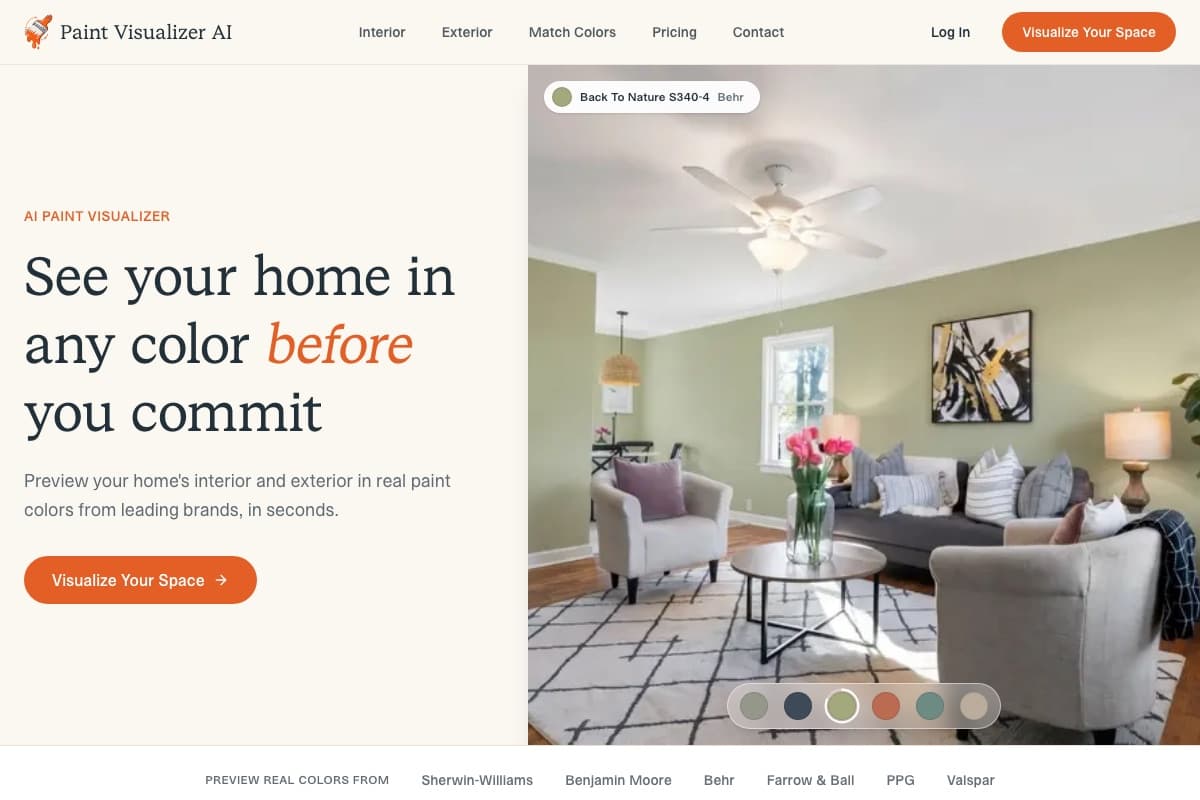
Paint Visualizer AI is our AI-powered paint color visualizer for previewing paint colors on photos of your own interior or exterior.
Rather than requiring you to manually select or mask individual areas of an image like many traditional paint visualizers, it uses AI to recognize the relevant surfaces.
You can simply specify what you want to repaint, such as the walls, ceiling, trim, or cabinets, and Paint Visualizer AI identifies those areas while preserving the space’s existing details.
You can use it to explore individual colors or create color combinations across different surfaces, with real paint colors from Sherwin-Williams, Benjamin Moore, Behr, Farrow & Ball, PPG, and Valspar available to preview and compare in the same place.
Automatic surface detection
With Paint Visualizer AI, you don’t need to manually trace or mask every area you want to repaint. You can simply choose the surface you want to change, such as walls, ceilings, trim, cabinets, or exterior siding, and the AI identifies the relevant areas in your photo.
If you have furniture, artwork, windows, shelving, or other objects that interrupt walls, our tool can work around them. The same applies to exteriors, where doors, windows, trim, roofing, landscaping, and other architectural elements need to remain separate from the surface being repainted.
Preserves lighting, shadows, and existing details
Paint Visualizer AI changes the selected paint surfaces while keeping the rest of your photo intact, including furniture, flooring, windows, fixtures, architectural details, and other existing finishes.
It also preserves the original image’s lighting and shadows. Instead of displaying a paint color as one flat block across a surface, the preview retains the lighter and darker areas created by the existing light in the space.
With Paint Visualizer AI, you can compare a new paint color with things you are not planning to change, such as flooring, countertops, tile, furniture, roofing, brick, or landscaping.
Visualize interior and exterior paint colors
You can use Paint Visualizer AI for both interior and exterior projects and preview colors across multiple paintable surfaces.
For interiors, this includes walls, ceilings, trim, doors, and cabinets. You can preview a single surface or explore combinations, such as different colors for the walls and trim, walls and ceiling, or cabinets and surrounding walls.
For exteriors, you can visualize exterior walls or siding, trim, doors, shutters, fences, and other paintable surfaces.
Compare real paint colors from leading brands
Paint Visualizer AI includes real paint colors from Sherwin-Williams, Benjamin Moore, Behr, Farrow & Ball, PPG, and Valspar. You can search for a color by brand, name, or code, then preview it directly on your photo.
Because these brands are available within the same visualizer, you can also compare colors across manufacturers without recreating your project in several different brand-specific tools.
For example, you can preview similar whites from Sherwin-Williams, Benjamin Moore, and Behr on the same room and against the same flooring, furniture, trim, and lighting.
If you are not working with a specific manufacturer color, you can also choose a custom color to visualize in your space.
Upload a photo of your room or exterior and preview real paint colors in your own space with Paint Visualizer AI. Your first three paint previews are free.
2. Sherwin-Williams Color Expert
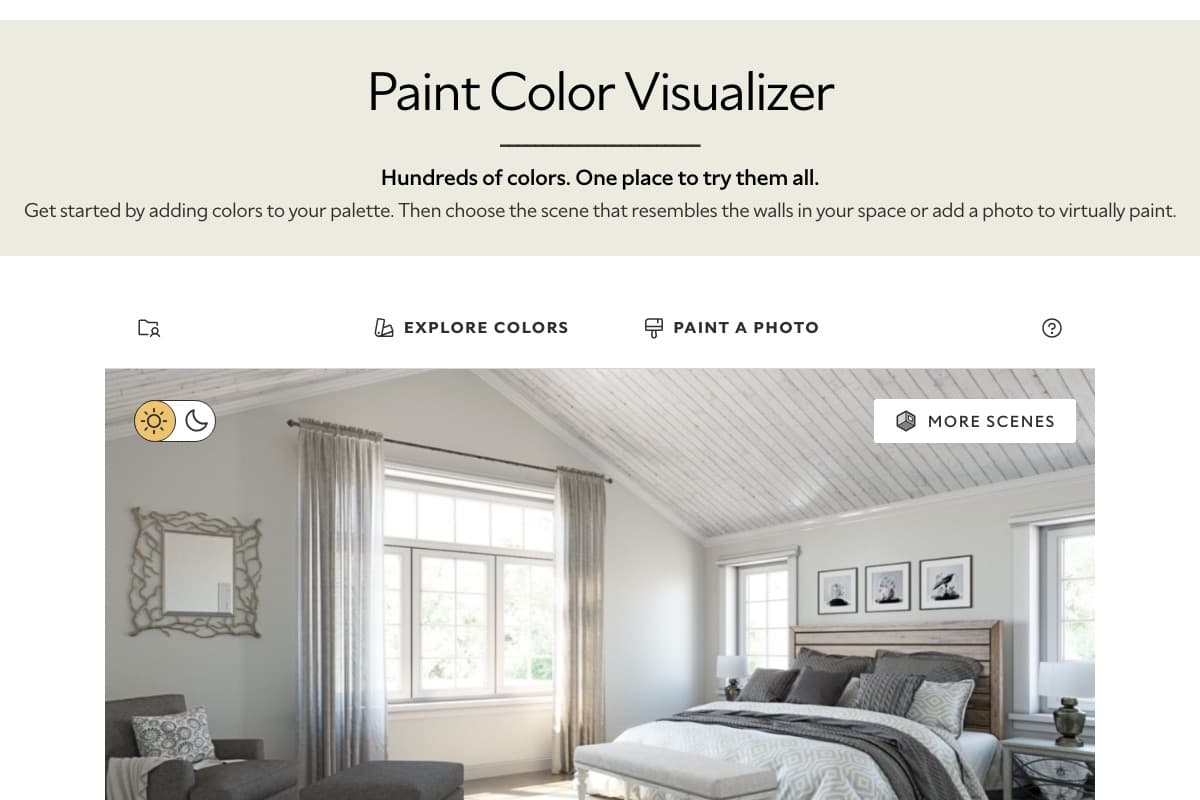
Sherwin-Williams offers several digital color tools, with its newer Color Expert app serving as its next-generation paint visualizer.
You can upload a photo of your space and preview Sherwin-Williams paint colors on your walls.
For exteriors, the app lets you apply different colors to individual surfaces such as siding, trim, shutters, and doors.
Color Expert also uses AI for color recommendations. It analyzes an interior photo and suggests Sherwin-Williams colors designed to complement the objects already in the room. You can save colors and order free color chips or peel-and-stick samples through the app.
The main difference compared with a multi-brand visualizer is that the experience is built around the Sherwin-Williams color collection.
Sherwin-Williams also still maintains its web-based Color Visualizer, although its website now directs users to Color Expert for visualizing colors in their own space.
3. Benjamin Moore Personal Color Viewer
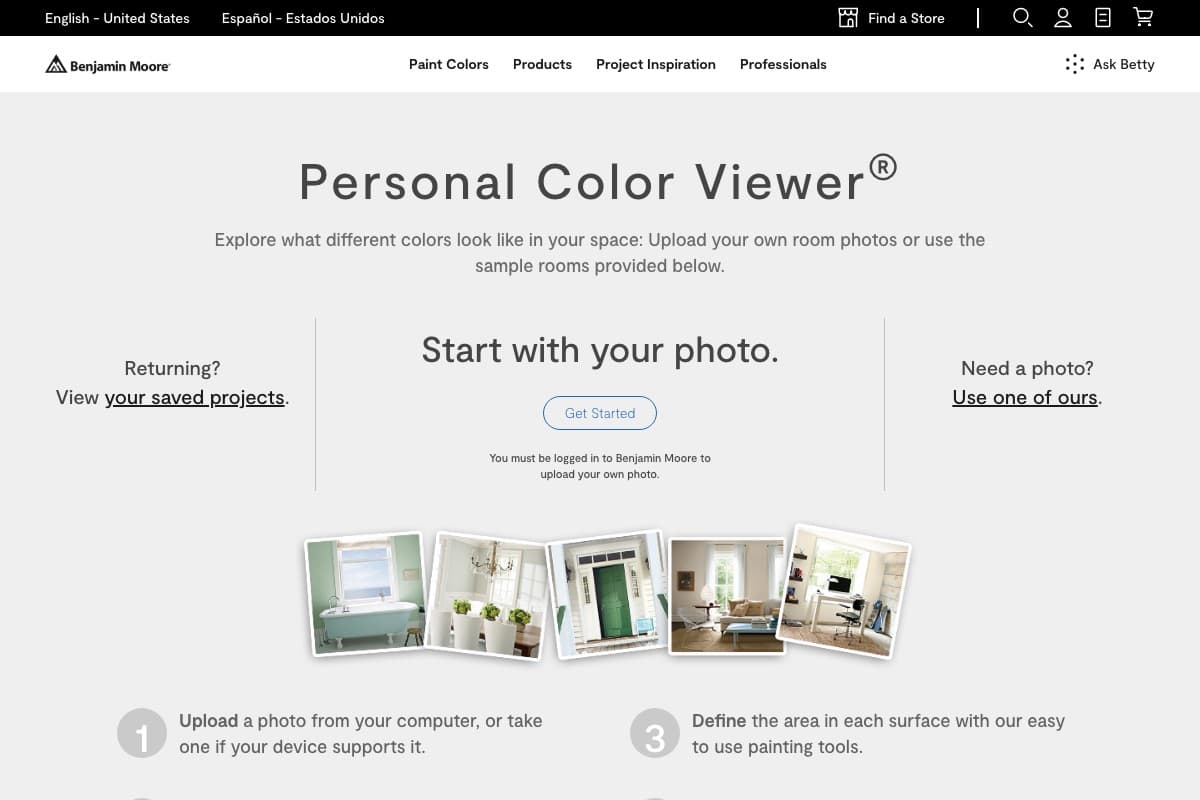
Benjamin Moore’s Personal Color Viewer lets you upload a photo of your space or use one of the company’s sample rooms.
You can create up to five paintable surfaces within an uploaded photo and experiment with more than 3,500 Benjamin Moore colors.
Unlike Paint Visualizer AI’s automatic surface detection, the Personal Color Viewer requires you to define the areas you want to paint using its painting tools. You also need to sign in to a Benjamin Moore account before uploading your own photo.
The web tool is designed for desktops and larger tablets and currently does not support mobile devices.
Benjamin Moore separately offers its Color Portfolio mobile app, which includes photo and video visualization and can match colors captured with your phone to Benjamin Moore paint colors.
4. Behr Color Visualizer
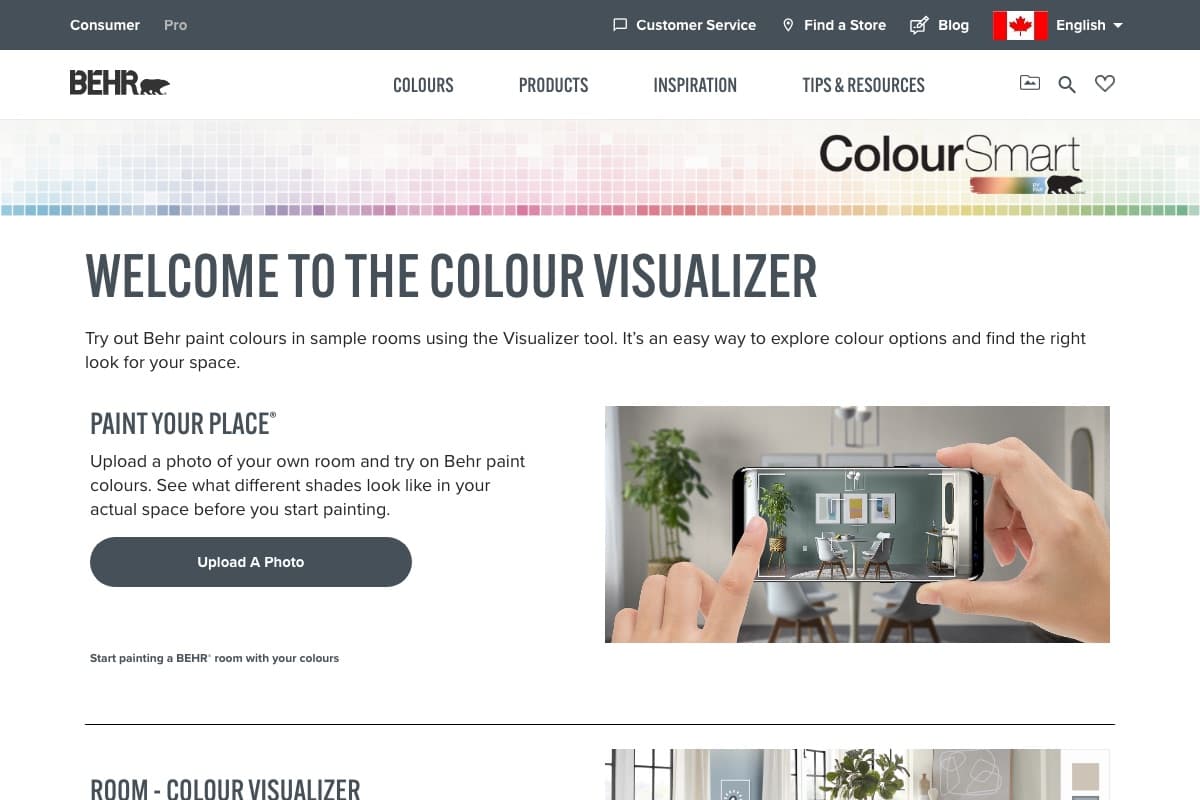
Behr’s Color Visualizer lets you explore Behr paint colors using either one of the company’s sample rooms or a photo of your own space.
With the Paint Your Place option, you can upload an interior or exterior photo and apply different Behr colors to the areas you want to visualize.
The tool is closely connected to Behr’s paint catalog, so you can move from exploring a color to viewing its product details and ordering samples.
Behr also provides pre-made room images organized by spaces such as bedrooms, living rooms, kitchens, bathrooms, and exteriors if you want to explore colors without uploading a photo.
Because it is a manufacturer-specific visualizer, the colors available within the tool are from Behr. This paint visualizer works well if you are already considering Behr paint, but you cannot use it to directly compare a Behr color with other paint brands.
5. PPG Paint Color Visualizer
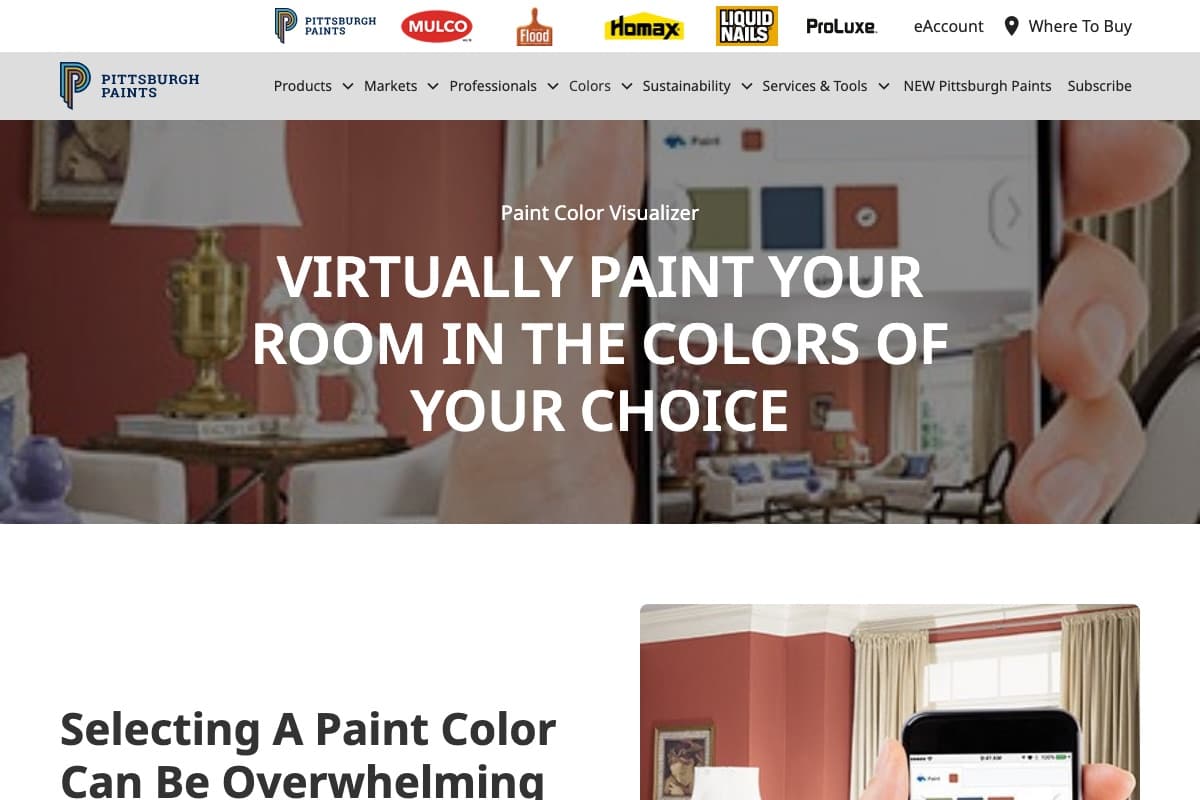
PPG’s paint color visualizer lets you upload a photo of your space and experiment with colors from the PPG paint collection. You can also use prepared room images if you do not have a photo available.
The visualizer identifies areas within the image and helps apply color around objects and architectural features, reducing some of the manual work involved in coloring a photograph.
You can experiment with different PPG colors and combinations to see how they work within the room before narrowing down your choices.
As with other paint-brand visualizers, the experience is centered on PPG’s own color collection.
It is useful for exploring PPG colors, but it does not let you compare paint colors from several manufacturers within the same project.
6. Valspar Color Visualizer
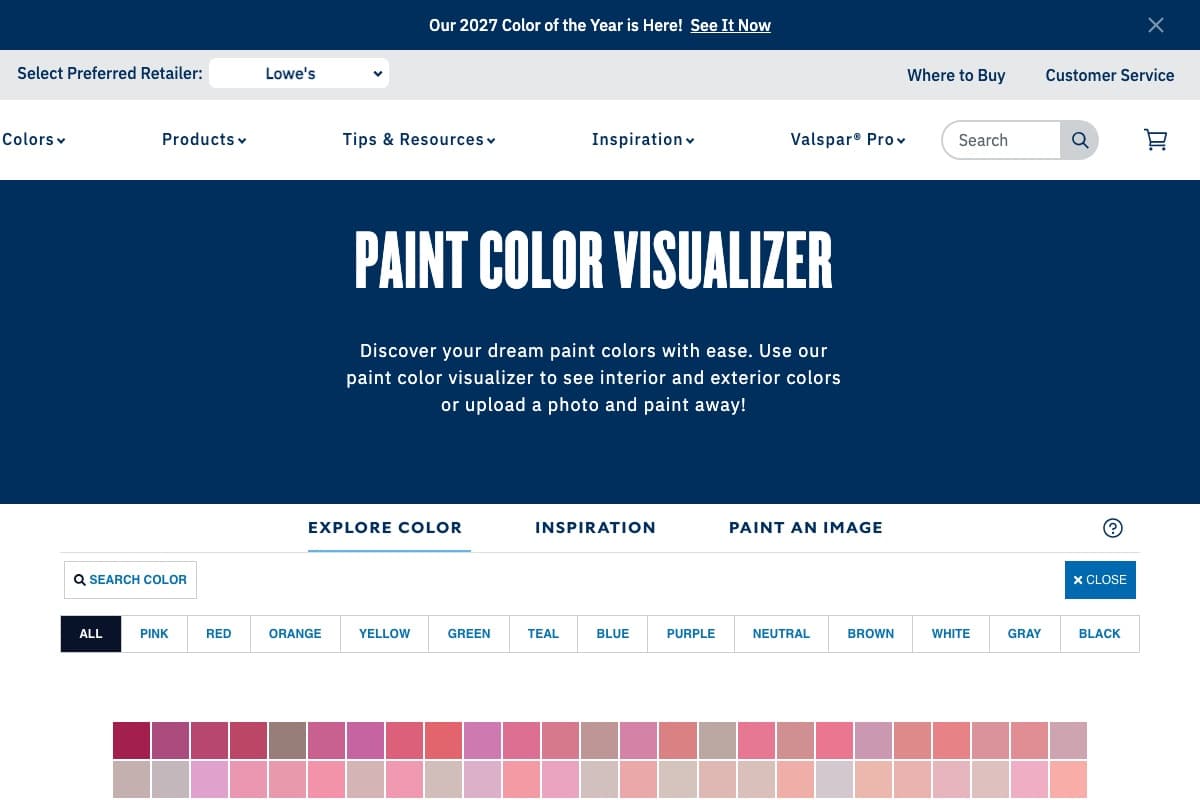
Valspar offers a digital paint visualizer to explore colors from its paint collection and see how different shades work within a room.
You can browse colors and experiment with combinations across different surfaces, helping you move beyond viewing a color on a small swatch.
The visualizer is connected to the Valspar paint collection and its broader color-selection tools, making it useful if you are considering Valspar paint for your project.
Valspar paints are also closely associated with Lowe’s in the U.S., providing a direct path from choosing a color to purchasing paint and samples.
Like the other manufacturer-specific tools on this list, the visualizer focuses on Valspar colors rather than letting you compare equivalent or similar colors from several paint brands in the same visualization.
7. Dulux Visualizer
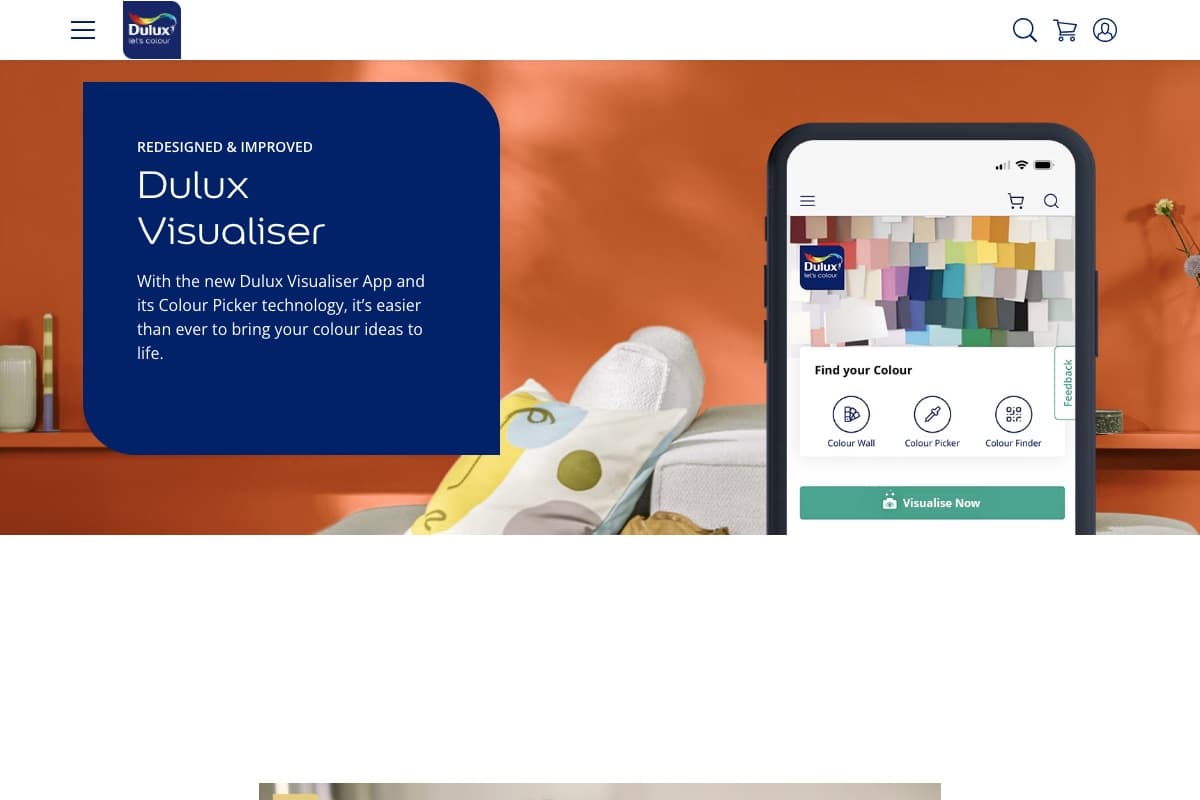
The Dulux Visualizer takes a different approach from many photo-based paint visualizers by using augmented reality to let you see Dulux colors on your walls through your phone or tablet’s camera.
Instead of relying only on a static uploaded photo, you can move around the room and see different colors applied to the walls in real time.
The app also includes color-matching features that can identify colors around you and suggest matching Dulux paint colors.
You can also save color ideas and create palettes before comparing different options in your space.
The Dulux Visualizer is built around Dulux’s own paint collection, and the colors and products available can vary by country.
8. Dunn-Edwards InstaColor
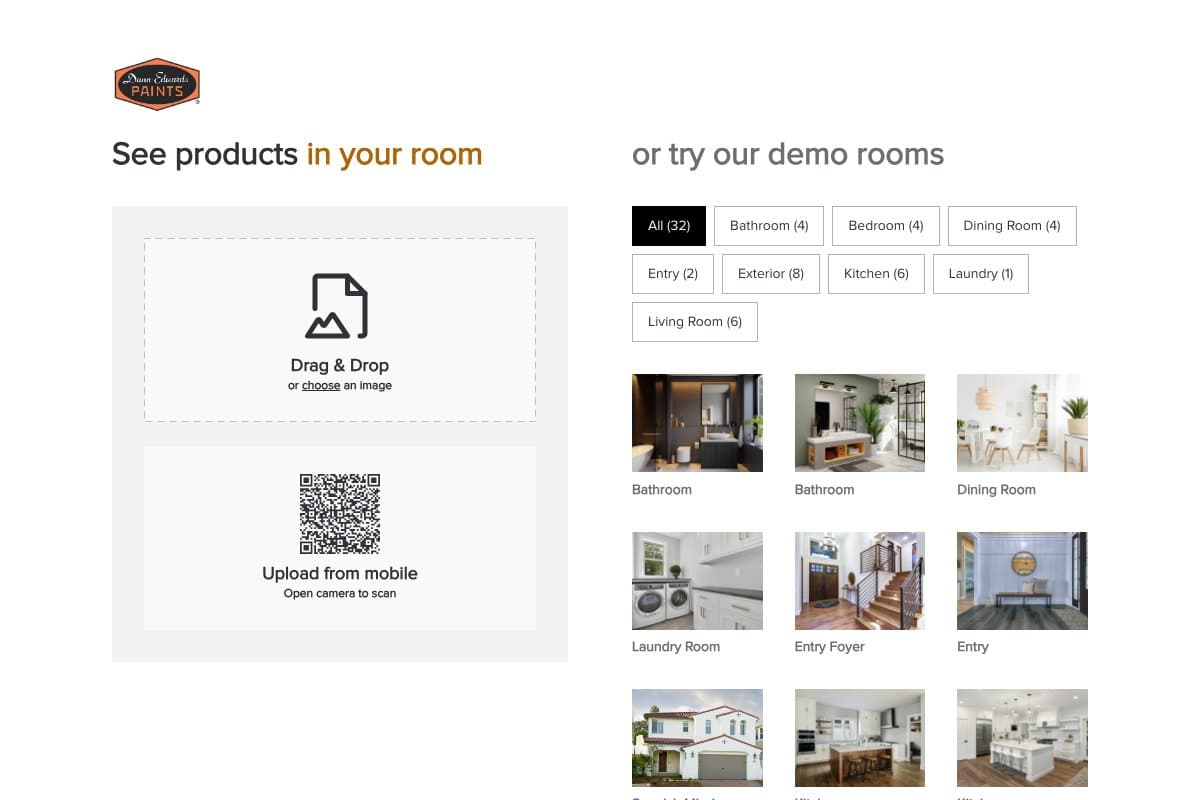
Dunn-Edwards InstaColor lets you upload a photo of your own interior or exterior and experiment with colors from the Dunn-Edwards paint collection.
You can also choose from sample images if you want to explore colors without uploading your own photo.
The tool allows you to apply different colors to paintable areas of the image and build color combinations across multiple surfaces.
For example, you can experiment with different wall and trim colors indoors or coordinate the main body, trim, and accent colors of an exterior.
InstaColor focuses on Dunn-Edwards paint colors, so it is most useful when you are considering the brand for your project.
Factors to Consider When Choosing a Paint Color Visualizer
Paint color visualizers vary in how they apply color, which surfaces they support, and the paint colors you can preview.
Here are the main factors to consider when choosing a paint color visualizer.
Surface detection
Some tools require you to manually define, trace, or select paintable areas, while AI-powered visualizers can automatically identify surfaces such as walls, ceilings, cabinets, trim, or exterior siding.
If you are working with complex photos or surfaces with objects in the way, automatic detection can save a lot of manual work.
For example, a wall may have furniture, artwork, windows, or shelving in front of it, while an exterior may include doors, windows, trim, shutters, masonry, and landscaping that should remain unchanged.
Paint Visualizer AI lets you specify the surface you want to repaint, such as the walls, ceiling, cabinets, or siding.
It automatically identifies the relevant areas in the photo while preserving surrounding objects and details, so you don’t have to manually trace or mask each section.
Rendering and visual realism
Some paint visualizers apply a relatively uniform layer of color over the selected area, while AI-powered tools can retain the lighting, shadows, and other details from the original photo.
A wall next to a window, for example, may have brighter areas, darker corners, and shadows cast by furniture. Preserving those variations gives you more context than showing the selected paint color as one flat block across the entire wall.
Paint Visualizer AI retains the lighting and shadows from your original photo while changing the selected paint color, so you can see the new color alongside the existing elements of your space.
Interior and exterior surfaces
Some visualizers primarily focus on interior walls, while others support multiple surfaces across both interior and exterior projects.
For an interior, you may want to compare colors across walls, ceilings, trim, doors, and cabinets. An exterior project may involve siding or exterior walls, trim, shutters, doors, fences, and other painted areas.
Paint Visualizer AI supports both interior and exterior projects. You can specify which surfaces you want to repaint and explore individual colors or combinations while leaving the other parts of the property unchanged.
Paint colors and brand selection
Manufacturer-specific visualizers generally provide colors from their own paint collection. If you have already decided to use Benjamin Moore, Behr, or Sherwin-Williams paint, its respective brand visualizer may give you the colors you need.
If you are comparing similar colors from several manufacturers, using separate tools means uploading or setting up your project again in each visualizer.
Paint Visualizer AI includes real paint colors from Sherwin-Williams, Benjamin Moore, Behr, Farrow & Ball, PPG, and Valspar. You can search by brand, color name, or code and compare colors from different manufacturers using the same photo.
You can also use custom colors when you are not working from one of these paint collections.
Using a photo of your own space
A sample room can show a general color direction, but it does not include the flooring, furniture, countertops, cabinets, trim, roofing, brick, landscaping, and other finishes in your own space.
Look for a paint visualizer that lets you upload your own photo and evaluate colors alongside the elements you intend to keep.
Paint Visualizer AI works with photos of your own interior or exterior. The existing elements remain in the visualization as you compare different paint colors and combinations.
Paint color accuracy
A visualizer may use the correct paint name or code, but you’re still viewing the image digitally.
Your screen, natural and artificial lighting, paint sheen, surface texture, and surrounding finishes can all affect how the physical paint appears. The same paint can also look different across different walls or at different times of day.
Paint Visualizer AI lets you select real colors by paint brand, name, or code.
We recommend using the preview to compare colors and narrow your options, then testing your finalists with physical paint samples in the actual space before choosing the final color.
Find the Right Paint Color for Your Space
Paint color visualizers give you more context than a swatch alone by letting you see different colors alongside the furniture, finishes, lighting, and other elements already in your space.
Whichever visualizer you use, treat the preview as a way to explore your options and narrow your shortlist. Once you have a few colors you like, compare physical samples in the actual space before making your final decision.
If you want to see how different paint colors could look in your own space, Paint Visualizer AI lets you upload a photo of your room or exterior, choose the surfaces you want to repaint, and compare different options while keeping the rest of your space intact.
You can preview real paint colors from Sherwin-Williams, Benjamin Moore, Behr, Farrow & Ball, PPG, and Valspar, as well as custom colors.
Your first three paint previews are free. Try Paint Visualizer AI today.